A rule-based proxy client for iPhone / iPad: verify the genuine App Store app, then learn about the one-time purchase, importing your own subscription, and routing settings.
App Store / the only place to get the appiPhone · iPadOne-time purchaseDOMAIN → DOMAIN-SUFFIX → FINAL.conf / rule reference
Devices and getting the app
App Store Purchase and first-time setup
Getting the app, preparing connection details, and allowing a VPN configuration are three separate steps. First verify the app’s identity and device compatibility in the store. Then set it up with your own subscription or server details. A successful purchase does not mean the connection is ready.
iPhone
Verify the app in the App Store, complete the purchase, and open Shadowrocket. The first time you connect, the system may ask to allow a VPN configuration. Make sure the request comes from the app you just opened, then follow the system prompts. This permission adds a connection configuration to your device; it does not fill in a server address, password, or subscription for you.
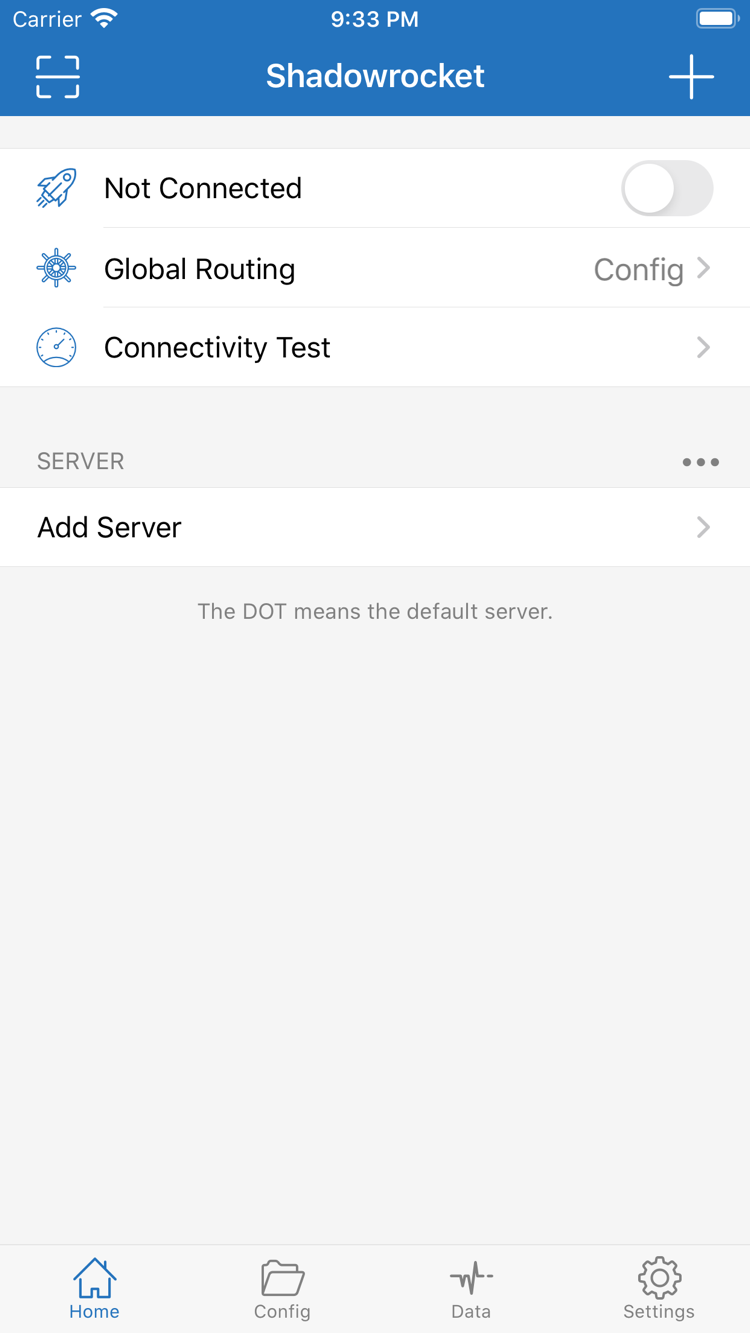
Return to Home and check whether the SERVER list contains an entry you can use. If it is empty, first import your own connection details. Then select an entry, set Global Routing, and try connecting. Check the App Store listing for system requirements.
iPhone and iPad can use the same purchase account to find apps you have already bought. Check the App Store listing for purchase eligibility. On iPad, first verify the account and purchase history in the store, then open the app and set up the connection. A connection on another device does not mean this device has selected a server automatically.
Check SERVER, Global Routing, and Config selection on this device’s Home screen. Layout may differ on a wider display. Identify settings by their English interface labels and field values, not just by button position. Check the App Store listing for system requirements.
Shadowrocket is also available through the same App Store on Mac and Apple TV. Check the App Store listing for system requirements and compatibility.
If you have a purchase record but cannot find the app, first check that you are using the original purchase account. Do not rush to pay again. Check device compatibility, store availability, and purchase history separately.
Think of setup in three layers: server details determine where to connect, Global Routing sets the routing mode, and rules in Config determine how specific requests are handled. The sections below cover common setup tasks. Example domains explain syntax only; they do not represent usable services.
Rule-based routing
Rules send matching requests to a specified policy. In Config, check the Rule section of the active configuration, then set Global Routing to Config on Home. Rules are generally checked from top to bottom, so put specific exceptions before broader matches. Place FINAL last to catch requests that did not match earlier rules. When troubleshooting, check both the match target and the policy; seeing a domain in a rule is not enough. The example first matches example.com and its subdomains, then handles requests that did not match. Policy names do not use the same capitalization as the interface options Proxy and Direct.
On Demand triggers connections based on configured conditions; it does not choose the policy for a particular domain. Find On Demand in Settings, review the available conditions, and enable them one at a time. First confirm that a manual connection works, then configure On Demand and observe what happens when you switch networks. If the connection comes back after you turn it off, check these settings instead of repeatedly changing Rule. The steps below are for reference, not an importable configuration. Check the app and system prompts on your device for available options and when they take effect.
Settings → On Demand
Home → Global Routing → Config
Multiple protocols
Before adding a server, check which protocol your existing service uses, then select the matching option under Type in Add Server. Shadowsocks, VMess, VLESS, Trojan, HTTP, SOCKS5, WireGuard, and Hysteria2 use different parameters; you cannot switch protocols by changing only the address and keeping all other settings. Match Host, Port, authentication, and transport fields to the information you were given. If the connection fails after import, check that all required fields are present. The example below shows how fields correspond; its dummy values cannot establish a connection.
Import a subscription only if you already have your own subscription link. On Home, open Add Server, choose Subscribe, and enter the complete URL. After saving, check that the expected items appear in the list. Query parameters in a URL often identify the subscription, so do not remove or change them casually. Do not expose a real URL in screenshots or troubleshooting notes. If an update fails, check that the URL was copied in full, that your current network can reach it, and that the subscription is still valid; then contact the original service provider. The token below is visibly a dummy value. This site does not provide subscription services.
https://example.com/sub?token=xxxx
Config files
Config files store global settings, rules, domain mappings, URL rewrites, and other content in one place. Manage them in Config. Before editing, keep a copy of the original file, confirm which Config is currently selected, and change one type of setting at a time. Sections such as General and Rule serve different purposes; do not put rules in the global settings section. Host and URL Rewrite also do not add servers. If you use iCloud sync, check the actual file and selection on the destination device. A synced file does not mean the connection state has synced. The example below shows the basic structure of two sections.
[General]
bypass-system = true

[Rule]
FINAL,PROXY
Diagnostic tools
Connectivity Test, Data, and Diagnostics in Settings help you check connections in different ways. First confirm that the correct server is selected, then review the test method and result. A latency reading does not replace testing a real request or show that every destination is reachable. Data traffic records can indicate whether requests are being made, but traffic alone does not prove that routing is correct. When troubleshooting, note the current network, Global Routing mode, and relevant errors; hide authentication details in any addresses before sharing notes. The steps below follow the interface and do not indicate test results.
Home → Connectivity Test
Data
Settings → Diagnostics
Global Routing: check the current mode first
Config, Proxy, and Direct are the routing options shown in the interface. Config applies routing rules from the active configuration; Proxy routes traffic through the proxy; Direct routes traffic directly. These are routing modes, not server protocols or subscription statuses. If rule changes seem to have no effect, first check whether Proxy or Direct is selected, then confirm which file is active in Config.
To verify the setup, follow this order: confirm the SERVER selection → check Global Routing → make a request to a specific destination → review the relevant logs. Change one setting at a time and record the result. Switching servers, test methods, and rules all at once makes it hard to identify the cause. Once the test works, re-enable On Demand and other settings step by step. This is easier to verify than repeatedly replacing the entire configuration.
example.com, ExampleApp, and the sample authentication details in the Config draft are for format demonstration only. First understand what each rule matches, then replace the examples with targets you are authorized to use and actually need to handle. Do not treat the entire example as a finished configuration for every network.
Shadowrocket Help Center is the official site and guide for Shadowrocket. Use the App Store product page to verify purchase information, and the interface labels in the app to check setup instructions. First confirm the app’s identity, then distinguish the client purchase from connection details and local configuration.
Verify these three details on the same product page
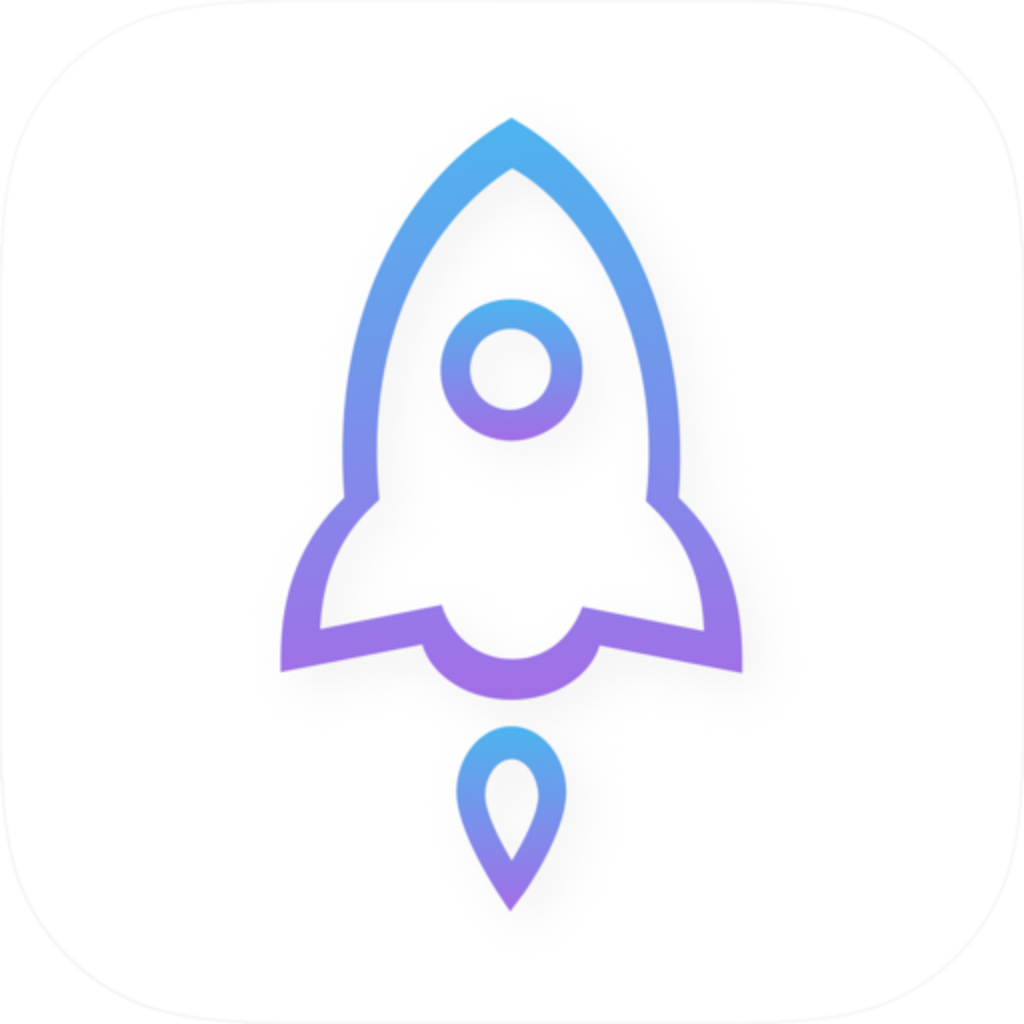
Shadow Launch Technology Limited App ID 932747118 · Official app icon
When you find the app in the store, do not rely on its name alone. Open the product page and check that the developer is Shadow Launch Technology Limited, that the product URL contains id932747118, and that the icon matches the official one shown here. Similar names or descriptions are not a substitute for these checks. Verify the icon alongside the developer name and ID.
Links from this site’s app page lead to this specific App Store product page. The price, compatibility, and purchase button shown in the store are the current terms. This page does not list app versions or update dates, which could become outdated and be mistaken for installation guidance.
What a one-time purchase means
Shadowrocket is a closed-source commercial app sold as a one-time purchase. The US storefront lists it at $2.99. The actual price, taxes, and local-currency amounts in other storefronts are shown on the App Store page at the time of purchase. Before confirming payment, review the app information and account prompts in the store. Do not assume prices from another region are the amount you will be charged.
The purchase belongs to the account used to complete it. Check your purchase history under the same account to find the app on iPhone or iPad. For other devices, check the App Store listing for compatibility and purchase eligibility. A payment record and local configuration are separate things; the former does not back up the latter.
Store availability and account region
Whether the product appears in your current store depends on the storefront used by your account and device compatibility. A product page that will not open, an app that does not appear in search, and a failed payment are different problems. Check the account, store messages, and device requirements separately rather than treating a store issue as a connection problem in the app.
For account region or payment details, verify your account information as prompted by the App Store. Do not repeatedly change servers or Config files in the app to fix search results; those settings do not affect store purchase terms. Always check the App Store listing for system requirements.
Restore purchases and back up Config
When switching devices or reinstalling the app, first use the original purchase account in the App Store to find your purchased apps. If you are asked to buy it again, check that you are using the same account and that the product is the same before proceeding. Check the store and account pages for Family Sharing eligibility and terms; do not assume it applies to this device just because it works on another one.
After restoring the app, check your own connection details, Config selection, and VPN configuration permissions. If you use iCloud sync, confirm that the files have reached the destination device and check their actual contents. Keep files containing authentication details secure. App Store manages updates; after updating, check your existing configuration and connection.
Frequently asked questions
Why do I need Config if I have already imported a subscription?
A subscription usually provides or updates server entries, while Config manages routing rules and other settings. Having a server in the list does not mean the right rules are active. Check SERVER, Global Routing, and the selected Config separately. Start by distinguishing subscriptions from Config files in the quick reference, then configure them for your needs.
Does a Connectivity Test result mean the connection is working?
A test result shows how the selected test method performed on the current network at that time. It does not confirm that every request follows the expected policy. Test an actual destination and review the connection logs as well. If a test fails, distinguish an unreachable address from an authentication failure or an issue with the destination request. See the guide to verification and troubleshooting.
When should I use DOMAIN-SUFFIX vs. DOMAIN-KEYWORD?
To match a specific domain and its subdomains, consider DOMAIN-SUFFIX. To match domains containing a particular keyword, consider DOMAIN-KEYWORD, which may match a broader set. List the targets you want and do not want to match before choosing a keyword and rule order. See the complete Config reference for details.
What should I check first if the connection comes back after I disconnect manually?
First check On Demand in Settings and the related VPN settings on your device for any automatic connection conditions. On Demand controls when to connect; Rule controls how requests are routed. They are not interchangeable. Note the original settings before making changes, then test one at a time. Check the quick reference for related terms.
Explore guides by topic: first understand rule matching, then learn about server protocols and transport requirements. A protocol name alone does not determine connection performance. Check it against the parameters for your existing service, your current network, and the results in the app. These articles do not replace your own connection details.